
How to Build a Shopify Store in 2025 (9 Easy Steps to Start Selling Fast)
If you want to build a Shopify store but don’t know where to start, this guide will walk you through every step, updated with the latest trends and best practices.
To learn more about Shopify’s key features and how to use it, check out our What is Shopify and How Does It Work? guide.
Unlike Shopify’s own tutorials, here you’ll also find practical tips enriched with our real-world experience.
You can also download ,updated with the new features for 2026, our free PDF checklist to follow every step with ease.
If you’re already busy growing your business, we can set up your Shopify store for you professionally, from start to finish, and in no time. Check out our Done for you Shopify Store service .
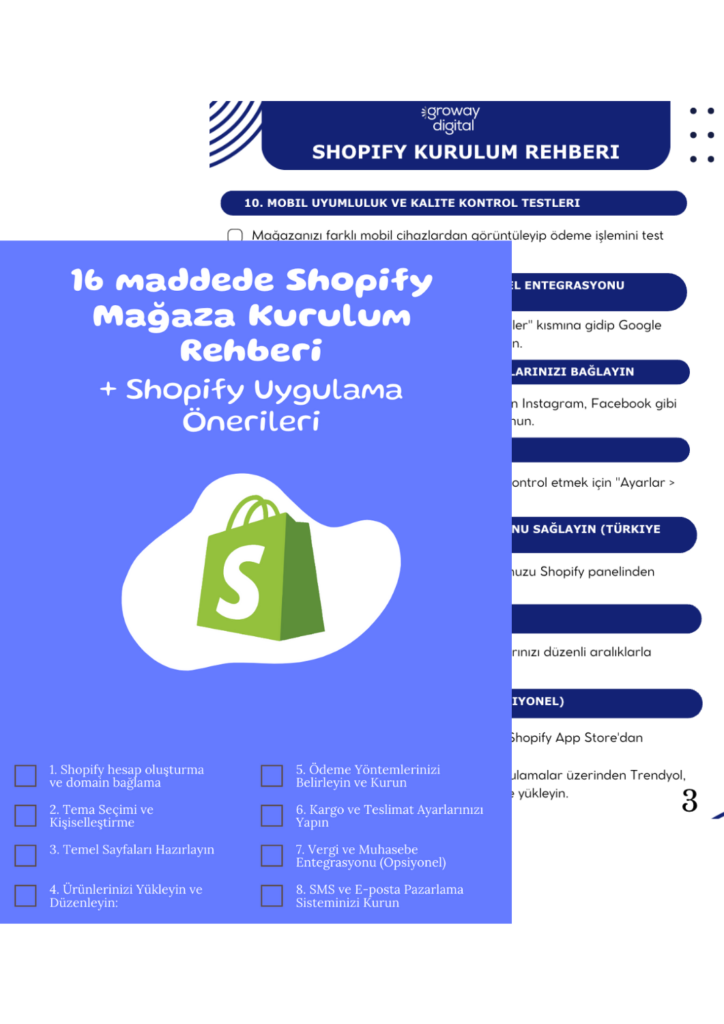
By downloading the guide, you agree to receive helpful content about growing your business by email. You can unsubscribe at any time..
Share
How to Start Selling on Shopify in 9 Steps
Starting to sell on Shopify doesn’t require advanced technical knowledge or a long setup process. By following a clear sequence of steps, you can launch your store and begin selling in a short time.
Here are 9 steps to quickly start selling on Shopify:
- Open your Shopify account.
- Choose a theme and customize your store.
- Add your products.
- Create essential pages and set up navigation menus.
- Set up payment methods and shipping processes.
- Connect your domain and enable SSL.
- Place a test order before launching.
- Install tracking tools: GA4 and Google Search Console.
- Grow your store with apps, ads, and other marketing strategies.
Now you can go through each step in detail to build and optimize your Shopify store for successful sales.
1. Create Your Shopify Account
You don’t need to pay anything to get started with Shopify. No credit card required. They offer a free 3-day trial. After that, you can extend it with a special promo for just $1 for 3 months.
1.1 Step-by-Step: How to Create a Shopify Account
- Go to Shopify.com.
- Click the “Start free trial” button.
- Enter your email, password, and store name.
- Answer a few quick questions about your business.
These details help Shopify personalize your dashboard.
Important Notes
- Your store name sets your Shopify subdomain: storename.myshopify.com
- Even if you connect a custom domain, this subdomain will still be used in the backend.
- During the trial, your store won’t be deleted. Sales stop, but your data stays saved (the store is frozen).
- All features are available in the dashboard, but to accept payments and make sales you’ll need to choose a plan and set up a payment provider.

Is it free to open a store on Shopify? No. Shopify gives you a 3-day free trial with no credit card required. After that, you can either switch to a paid plan or pause your store. Later, you can pick up right where you left off.
1.2 The Real Differences Between Shopify Plans
Shopify offers three main plans: Basic, Shopify, Advanced.
Which plan should you start with?
- If you’re just starting out: The Basic Plan covers everything you need—product listings, payment processing, and theme customization.
- If you’re working with a team: The Shopify Plan includes up to 5 staff accounts (instead of 2) and more detailed reporting.
- If you need global selling, multiple currencies, or advanced shipping settings: The Advanced Plan is the right choice.
You can compare the details here: Shopify Pricing Page
The good news? Shopify lets you upgrade or downgrade anytime. Most businesses start with Basic, then move up as they grow. You can also scale back later if needed.
How much commission does Shopify take?
Shopify charges up to 2% transaction fees, depending on the payment method you use.
This fee is lower if you use %2’ye kadar işlem ücreti alabilir. Ancak bu oran
Shopify Payments , which is available in the U.S. and most European countries.
With Shopify Payments, you can accept major credit cards, Apple Pay, Google Pay, and more—without needing third-party providers.
PayTR, İyzico is used if Shopify Payments cannot be used.
For more details, check out "How to Start a Shopify Store for Beginners" page.
1.3 Tips for Choosing a Shopify Store Name
Your store name is the digital showcase of your brand. It should be easy to read, simple to write, and a good fit for your target market.
A good store name should be:
- Short, memorable, and easy to spell.
- Preferably with a .com domain if available.
- Relevant to your product category.
- Used as part of your Shopify URL:
your-store-name.myshopify.com - Changeable later with a custom domain, but your original Shopify name stays fixed.
- Clear and readable internationally if you’re selling in English.
Do you need a company to open a Shopify store?
No, you don’t need one just to test Shopify. But to connect payment gateways and issue invoices, you’ll eventually need a registered business.
2. Choose a Theme and Customize Your Store
Your Shopify theme defines the look of your store and shapes the first impression for visitors. A fast, simple, mobile-friendly theme that highlights your products directly impacts your conversion rate.
2.1 Free vs. Paid Shopify Themes
The Shopify Theme Store offers over 100 themes. Some are completely free, while paid themes usually cost a one-time fee of $180–$350.
Take a look here: Shopify Theme Store
| Feature | Free Themes | Paid Themes |
|---|---|---|
| Cost | Free | One-time payment |
| Customization | Basic blocks | Advanced block structure |
| Speed | Generally fast | Optimized for performance |
| Mobile Friendly | Yes | More advanced mobile design |

If you’re just starting out, a free theme is more than enough. As your sales grow, you can switch to a paid theme based on your needs.
You can add themes to your store and test them for free. You’ll only need to pay when you publish a paid theme.
2.2 What to Consider When Choosing a Shopify Theme
- Prioritize Mobile-Friendliness: Most visitors shop on mobile devices (70%+). Open your demo store on your phone and test every page. A theme that doesn’t perform well on mobile can cause sales loss.
- Choose a Theme That Fits Your Industry:
- Fashion: Image-heavy themes with grid layouts work best.
- Furniture: Wide visuals and scroll-based layouts are more effective.
- Digital products: Minimalist design, fast loading, and FAQ blocks are key.
- Shopify’s theme filter under “Industry” can help. Always test with a live demo.
- Don’t Fall for Visual Traps:
- Demo images aren’t yours, focus on the theme’s structure and layout.
- Test slow-loading themes with Lighthouse ; avoid them if the score is low.
- Check when the theme was last updated. Avoid themes that haven’t been maintained for a long time.
2.3 Shopify’s New Theme: Horizon
Horizon,is one of Shopify’s latest free themes. It includes many of the features you’d normally expect from paid themes:
- Clean, modern design
- Fast loading speed
- Drag-and-drop blocks for easy page building
- Strong collection and product page layouts
Feature | Horizon (Ücretsiz) | Paid Themes |
Color Variants | ✅ Included | ✅ Included |
Countdown Timer | ✅ Included | ✅ Included |
Mega Menu | ✅ Included | ✅ Included |
Product Comparison | 🔸 Limited support for feature-based display only — full product comparison requires an app. | ✅ Tam Paket |
Performance & UX | ✅ Mobile-first, clean, and fast-loading (Shopify test score 90+) | ✅ Generally optimized; premium themes may include advanced interaction features |
- The Horizon theme can be explored in Shopify’s official theme store You’ll find all detailed features, demo visuals, and technical documentation there.
- The features of Horizon are more than sufficient for beginners. However, for advanced needs such as product bundles or pop-ups, you may need to install additional apps.

Summary
- When choosing a theme, first consider your target audience, then the type of product you sell.
- Test mobile performance and measure speed scores with tools like Lighthouse.
- Starting with the Horizon theme allows you to build a strong foundation, even if you don’t have technical knowledge.
Additional Note: More on Product Page Design Coming Soon
Product page optimization, visual layout, text arrangement that increases conversion rates, and designs tailored to your target audience will be covered in a separate article.
To be notified when the new article is published, you can subscribe to our email list.
3. Add Your Products
Adding products to your Shopify store isn’t just about uploading a few photos and entering prices. The product page is one of the most critical areas for SEO, conversions, trust, and user experience.
We are preparing a separate guide for deeper content strategies, A/B testing, and upsell tactics.
3.1. Enter Complete Product Information
Path: Shopify panel → Products → Add Product
Required fields: Title, description, media, price, inventory, variants, shipping information
Missing information negatively impacts both user experience and search engine visibility.
Source: Shopify Help Center
3.2. Title & Description – Must Be SEO-Focused
- Your title should be short, clear, and include keywords (50–55 characters is ideal).
- The first 1–2 sentences of the description should highlight the product’s biggest benefit.
- Provide technical details in bullet points.
- Always include trust-building details such as shipping/return information.
Source: Shopify Blog
3.3. Media – Images, Videos, 3D
- 2048×2048 px square images are recommended.
- Adding a video or usage demo increases conversion rates.
- 3D or AR-supported visuals can boost engagement by up to 27%.
Source: Vogue Business
3.4. SEO Settings
- Meta title: Should be within 55 characters and start with a keyword.
- Meta description: 150–160 characters, a short summary including a CTA.
- URL: Short, readable, and keyword-rich (example: /products/wooden-table).
- Shopify automatically adds rich snippet schemas.
3.5 Variants and Inventory
- Options like size and color should be defined as separate variants.
- Each variant should have its own image and stock information.
- Use visual swatches for colors.
Source: Shopify Help Center
3.6 Collection Assignment
- Include products in manual or automated collections.
- Labels like “New Arrivals” or “On Sale” improve the user experience.
Source: Shopify Help Center

Tip:
- Shopify can automatically convert images to WebP format, but uploading already optimized .webp images gives an extra advantage for page speed.
- If you change a URL, always set up a 301 redirect.
- Track product page performance using Google Analytics and Search Console.
4. Prepare Your Pages and Menus
Building page and menu structures in Shopify is not just about visibility. A proper setup helps your visitors understand who you are and signals to Google that “This site is a serious business.” An incorrect or incomplete structure can lead to both conversion loss and ranking loss.
4.1. Essential Pages
Path: Shopify admin > Online Store > Pages
In Shopify, be sure to create the following essential pages:
- About Us: Clearly explain who you are, why you are doing this business, and why customers should choose you.
- Contact: Add email, phone, WhatsApp (if available), and a contact form. Prove your accessibility.
- Return & Shipping Policy: Explain the process for orders, shipping, and returns clearly, leaving no room for confusion.
- Privacy Policy: Provide a transparent statement compliant with GDPR and KVKK.
- Frequently Asked Questions (FAQ): Collect answers about orders, shipping, payment, and products on a single page.
Why is it important? These pages are perceived by Google as “Trust Signals” and also speed up the visitor’s decision-making process.
4.2. Header Menu (Main Menu)
Path: Shopify admin > Online Store > Navigation
Your header menu should include:
- Home
- Products / Collections
- About us
- Blog (if available)
- Contact Us
Tip: Use sub-menus to separate collections by category.
Why like this? From a UX and clickability perspective, the menu structure should be simple and focused at first. Having more than 5–6 main links overwhelms the user. On mobile, use a hamburger menu and make sure the most important pages can be reached within 1–2 clicks.
4.3. Footer Menu (Bottom Area)
Your footer menu is a fallback area. It helps reduce purchase hesitation because visitors usually check here before making a decision.
Must-Haves:
- Legal page links such as Privacy, Refund, and Terms of Service
- About Us and Contact links (with a short description)
- Newsletter subscription area
- Payment security badges (SSL, card logos)
- Social media icons (Instagram, Pinterest, etc.)
SEO Impact of Privacy Policies
- Demonstrates your brand authority and legal foundation
- Required for Google Merchant approval
- Completes your sitemap
- Helps you pass “Trust” filters in AI crawls
Source: Google Merchant Center Help
A complete, simple, and trustworthy page structure is a strong ranking signal for Google, and for visitors, it’s a purchase decision factor.

5. Shopify Payment and Shipping Settings: Configuring Correctly to Avoid Missing Orders
When setting up your Shopify store, if you’ve reached the payment and shipping settings stage—congratulations! You’re now one step closer to making sales. In this section, we’ll explain how to set up your payment and shipping systems securely, smoothly, and in a user-friendly way.
5.1. Set Up Your Payment Methods
Path: Shopify Admin → Settings → Payments
Recommended Methods for Turkey:
- PayTR or İyzico: Works with integration, applications are submitted online.
- Average approval time: 2–5 business days
- Required documents: Tax certificate, signature circular, company details (sole proprietorship or limited company)
- Install the application from the Shopify App Store to enable integration.
- İyzico App Store Page
- PayTR App Store Page
Methods for Global Sales:
- Shopify Payments: Available in countries like the USA, Canada, and the UK. Easy to set up, lower transaction fees. Uses Stripe infrastructure.
- PayPal Express Checkout: Valid in almost all countries. Automatically pulls customer data into the checkout screen.
- Stripe: A strong alternative for global credit card transactions.
After that: Offering multiple payment methods can increase conversion rates by up to 20%.

5.2. Set Up Your Shipping Settings
Path: Shopify admin → Settings → Shipping and Delivery
Defining Shipping Zones
- For Turkey:
- Turkey
- Northern Cyprus (separate region)
- International shipping (can be separated as EU/US)
- For the USA:
- Lower 48 States
- Alaska & Hawaii (separated due to different shipping costs)
- For Europe:
- All EU countries
- Iceland, Norway, Switzerland, etc.
Shipping Rate Structures
- Flat Rate: Single fixed-price shipping → Provides clarity.
- Free Shipping: Activated once the cart reaches a certain amount (e.g., over 750 TL).
- Real-Time Calculation: Live rates are fetched from the shipping provider via API (possible with Shopify Plus or custom apps).
Displaying the shipping cost upfront in the cart reduces cart abandonment rates. Source: Baymard Checkout Research – Hidden Costs

Quick Checklist
- Is the payment infrastructure set up (local and global)?
- Have shipping zones been defined for all regions?
- Is your free shipping or flat-rate strategy clear?
- Is the shipping cost displayed transparently in the cart?
- Are tracking links and automatic email notifications active?
6. Connect Your Domain and Check SSL
Your store may be ready to go live, but if you haven’t connected your domain, neither Google nor customers can see you. This step is not just a technical detail; it’s a critical milestone for SEO, trust signals, and branding.
6.1. How to Connect a Domain?
Path: Shopify Admin > Settings > Domains > “Connect existing domain”
If you purchased your domain from an external provider (like GoDaddy, Turhost, Google Domains, etc.):
- Log in to your DNS panel
- Add the following records:
- A Record: 23.227.38.65 (Shopify IP)
- CNAME: shops.myshopify.com (for www)
- It may take between 15 minutes and 48 hours for changes to take effect.
Shopify Help Center: Connecting a Domain
Should You Buy From Shopify or an External Provider?
Advantages of a Shopify Domain:
- DNS is configured automatically, no technical workload
- SSL is set up quickly
- Easily managed from the Shopify admin panel
Advantages of an External Domain:
- Usually cheaper
- Email services are easier to integrate
- You can use the domain for other projects as well
6.2. SSL Certificate – Essential for Security and SEO
Shopify automatically assigns an SSL certificate to all connected domains. However, after connecting, you should manually check:
- The URL should start with
https://https:// - If SSL is not active, Shopify will show a warning in the admin panel
- Double-check your DNS settings
SSL not only ensures user trust but is also considered a positive ranking signal by Google.
Pro Tips
- Always keep auto-renewal enabled for your domain.
- Set the DNS TTL to a lower value (e.g., 600 seconds) for faster propagation.
- Make sure you redirect between www and non-www versions (canonical setup).
- Don’t forget to add your domain to Google Search Console.
Quick Checklist
- Is your domain successfully connected?
- Is SSL active (does it show https://)?
- Is the www/non-www redirection working correctly?
- Are you using the root domain?
- Has the domain been added to Google Search Console?

7. Shopify Yayın Öncesi Kontrol: Sipariş Testi
You’ve reached the final stretch. Before your store goes live, there are a few last but critical steps you need to complete. Even if everything looks ready, these tests directly impact your conversions and search engine performance.
7.1. Create and Cancel a Test Order
Path: Shopify admin → Settings → Payments → Test Mode (Bogus Gateway)
- Place an order using a fake card number
- Check order confirmation emails, stock alerts, and notifications
- Cancel the order and test the refund process
All these steps confirm whether automations are working correctly. You can catch errors at this stage.
7.2. Double-Check Your SEO and Meta Information
- Are all pages filled with Title and Meta Description fields?
- Does the Title include the target keyword?
- Are meta descriptions within the 150–160 character range?
- Are URLs short and readable?
Shopify SEO fields: → Under Products / Collections / Pages → “Search Engine Listing”
7.3. Yayın Öncesi Site Test Araçları (Ücretsiz)
| Tool | Purpose |
|---|---|
| Ahrefs Webmaster Tools | Broken links, missing meta, content issues |
| PageSpeed Insights | Page speed test |
| Screaming Frog (Free) | Page-level technical SEO analysis |
| WAVE Web Accessibility | Accessibility issues |
| Shopify Theme Check | Detects errors in theme files |
8. Install tracking tools: GA4 and Google Search Console.
Google Search Console:
- https://search.google.com/search-console
- Add your domain, verify using either “Domain” or “URL prefix” option
- Recommended method for Shopify: Verify via DNS (record added through your domain manager)
Google Analytics 4 (GA4):
- Install the official “Google & YouTube” app from the Shopify App Store.
- Connect your GA4 property by logging in with your Google account.
- No extra code is required; GA4 data collection starts automatically.
After that: If you want to manually add the GA4 code, you can use the “Customer Events” section. → Shopify Admin → Settings → Customer Events / Preferences
Pro Tip: By linking GSC and GA4 within GSC, you can access more detailed analytics.
Is Publishing Immediately Advantageous?
Yes. Contrary to what many think, publishing early has major advantages:
- The Google indexing process starts right away
- Page errors are detected early by GSC
- Real user behavior data begins to accumulate
- Progress can be made by testing pages without waiting for perfection
9. Grow your store with apps, ads, and other marketing strategies.
The Shopify App Store is the fastest way to increase conversions, gain design flexibility, and fill in missing functionalities. The following popular apps are still active and up to date:
9.1. Reviews and Social Proof
- Loox Visual reviews, automatic review requests, and social proof tools
- Judge.me Photo/video reviews, 5-star ratings, Google and social media integrations
9.2. Cart Boosters / Upsell Tools
- ReConvert Post-purchase upsell, subscriber email campaigns, and additional sales suggestions
- Frequently Bought Together Smart product bundling that increases AOV (Average Order Value)
9.3. Chat & WhatsApp Button
9.4. Recover Abandoned Carts
- Klaviyo Advanced email/SMS automation, abandoned cart strategies
- Shopify Email A built-in email marketing tool provided by Shopify (no external link)
9.5. Analytics ve Heatmap
- Lucky Orange Heatmaps, session recordings, form analysis
- Hotjar Comprehensive user behavior analysis
Important Notes
- Unnecessary apps can slow down your site. Performance score decreases.
- Do not install multiple apps with similar functions.
- Paid apps usually offer a 7–14 day trial period.
- Test them, and if they are truly useful, make them permanent.
Take Your Shopify Store to the Next Level
In this guide, you have completed the full setup of your Shopify store. But the real sales and growth journey starts now.
If you’d like more background information, you can also check out our comprehensive guide on how Shopify works .
In the upcoming guides, we’ll be covering the following topics. To stay updated, you can subscribe to our email list for free:
- Boosting e-commerce sales: Core marketing methods, ad ideas, and conversion optimization
- Product page improvements: Suggestions for persuasive descriptions and structures that build trust
- SEO and content strategy: Steps for content planning and execution to increase organic traffic
Every store is unique. If you’d like us to plan the best strategy tailored for you feel free to get in touch with us.
FAQ
How much is Shopify per month (in TL)?
The Shopify Basic plan costs 39 USD globally. However, in Turkey, there may be promotional offers such as 1 USD for the first 3 months. The TL equivalent varies depending on the exchange rate.
Do you need a company to open a Shopify store?
Yes, in Turkey, you need to have either a sole proprietorship or a legal entity (company) in order to issue invoices. E-invoice (e-fatura) / e-archive is also mandatory.
Is it possible to sell in Turkey with Shopify?
Yes, you can open a Shopify store from Turkey and sell both domestically and internationally. As long as the payment systems and shipping settings are configured correctly, it works smoothly.
How much commission does Shopify take?
Shopify charges a commission fee of 2.9% + 30 cents on its own payment system (Shopify Payments). In Turkey, however, commission rates of third-party payment providers such as PayTR or İyzico apply.
How many months is Shopify $1?
Shopify does not have a direct shipping partner in Turkey. However, you can integrate with companies such as MNG, Aras, Yurtiçi manually or through third-party applications.
How many days does Shopify take to pay?
If you are using Shopify Payments, payouts are usually made within 3–5 business days. For systems used in Turkey, such as PayTR and Iyzico, the payout period varies between 2–7 days.
Is it mandatory to establish a company for Shopify?
Yes, in order to issue invoices, you need to have either a sole proprietorship or a legal entity (registered company).
Are Shopify’s tax settings sufficient?
You can define VAT rates, but they do not replace official tax declarations.
Which shipping company does Shopify work with?
Shopify does not have a direct shipping partner in Turkey. However, you can integrate with companies such as MNG, Aras, Yurtiçi manually or through third-party applications.
Free Shopify Store Setup Guide
By submitting your information, you agree to receive marketing content that we believe may interest you via email. You can unsubscribe at any time.We will never sell, rent, or share, your personal information and third parties.
